Free Password Managers: What Are the Limitations?
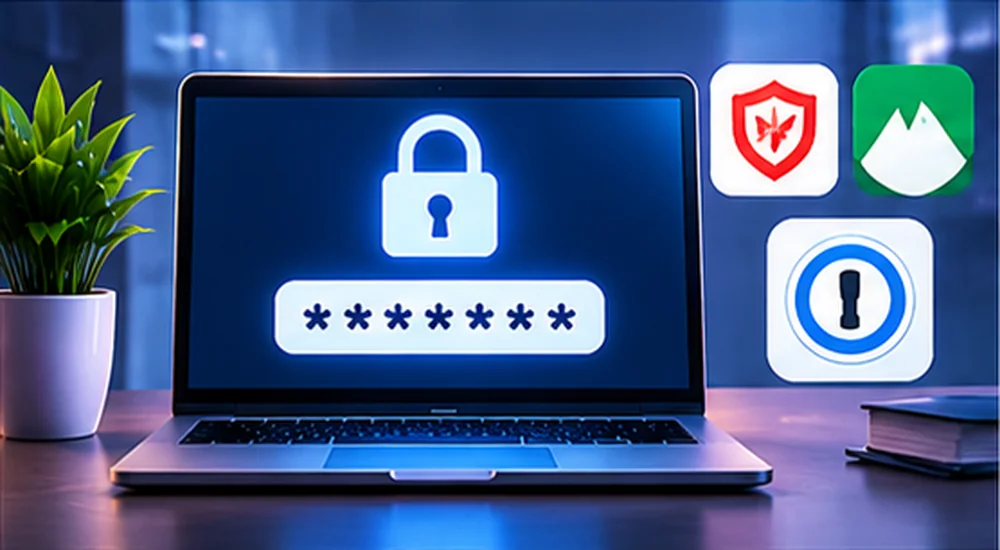
One note up front: plans change often, so always confirm the current features on the provider’s official pricing page before you commit.
Why Use a Password Manager at All?
The honest reason most accounts get hacked isn’t sophisticated hacking — it’s password reuse. When one site is breached, attackers try that same email-and-password combination everywhere else, a tactic called credential stuffing. A password manager breaks that chain by giving every account its own long, random password you never have to memorise. It’s the single most practical upgrade to your online security, which is why it sits at the heart of our password security tips.
How a Password Manager Works (in Plain English)
Your passwords are stored in an encrypted “vault”. That vault is locked with your master password, and only you hold the key — good managers use end-to-end encryption, meaning even the company can’t read your vault. When you visit a site, the manager autofills the right login, and it can generate a fresh strong password whenever you sign up somewhere new. Simple idea, huge payoff.
Common Free-Plan Limitations
| Feature | Possible limitation | Why it matters |
|---|---|---|
| Device syncing | Limited devices or platforms | Access across phone and computer |
| Password sharing | Limited or unavailable | Family and team workflows |
| Security reports | Advanced monitoring may be paid | Finding weak or reused passwords |
| Support | Limited priority support | Help during account problems |
| Storage | Attachment or item limits | Saving documents or secure notes |
The two limits people hit most are device syncing and sharing. If a free plan only syncs to one device type, you may find yourself unable to grab a password on your laptop that you saved on your phone — and that friction is exactly what pushes people back into reusing passwords.
What Matters More Than the Price
Strong encryption and trustworthy design
Read the provider’s security documentation and look for independent audits. Pay attention to how encryption keys are handled — the best designs mean the company itself can’t see your passwords. Don’t assume “free” means insecure or “paid” means secure; a well-built free manager can be safer than a weak paid one.
Reliable access on your devices
Check support for your operating systems, browsers and phone. A manager you can’t use consistently is worse than useless, because it quietly nudges you back toward reused passwords.
Recovery options
Understand exactly what happens if you forget your master password or lose your phone. Because strong managers can’t see your vault, many cannot recover it for you without a recovery key or code. That’s a security feature, not a flaw — but it means you must save your recovery material somewhere safe from day one.
Popular Free Options to Research
| Option | Known for | Check before choosing |
|---|---|---|
| Bitwarden (free) | Open-source, unlimited passwords, syncs across devices | Advanced reports and sharing are paid |
| Proton Pass (free) | Privacy focus, from the makers of Proton Mail | Some sharing and alias limits |
| Built-in (Google/Apple) | Convenient, already on your devices | Best within one ecosystem; limited cross-platform |
Feature sets differ and change, so check the official plan details rather than trusting an old comparison chart. If a tool claims to be one of these but the website looks off, double-check you’re on the real site — our guide on spotting fake websites and apps applies here too.
When Is a Free Plan Enough?
A free plan works well if you mainly need unique passwords, basic autofill, and access on your supported devices — without family sharing or business controls. For a single person protecting their own accounts, the leading free managers are more than capable.
When Might Paying Be Worthwhile?
Consider upgrading if you need shared family vaults, advanced breach monitoring, emergency access for a trusted person, or organisational controls for a team. The smart approach is to pay for a specific need you actually have — not for a long feature list you’ll never touch.
How to Start Safely
- Choose a reputable provider and review its current security documentation.
- Create a strong master password (or a supported secure sign-in method) — this one you do need to remember.
- Enable multifactor authentication on the manager itself.
- Import your existing passwords, then delete any unprotected export file immediately.
- Replace reused passwords, starting with your email and financial accounts.
Your email is the top priority, since it can reset every other account — the same reason it leads our guide on securing your Google account.
Final Thoughts
For most people, a reputable free password manager is a huge security upgrade and completely sufficient. The limitations — device sync, sharing, advanced reports — only matter once your needs grow. Start free today, protect it with a strong master password and MFA, and upgrade later only if a real need appears. The worst password manager is the one you never set up. While you’re at it, it’s worth checking whether your email already appears in a leak — our guide on how to check if your email was in a data breach shows you how.
Frequently Asked Questions
Are free password managers safe to use?
Reputable ones can be very safe, using end-to-end encryption so even the company can’t read your vault. Safety depends on the provider’s design, regular updates and your own account security (a strong master password plus MFA).
Can a password manager prevent phishing?
It helps — a good manager only autofills on the correct domain, so it won’t fill your login on a lookalike site. But it doesn’t eliminate phishing risk, so stay alert.
What happens if I forget my master password?
With strong encryption, the provider often can’t recover your vault. You’ll need your recovery key or code, so save that somewhere safe when you set up the manager.
Is the free version enough for one person?
Usually yes. If you just need unique passwords and autofill across your devices, a leading free manager covers it. Paid plans mainly add sharing, monitoring and team features.
Are built-in browser password managers good enough?
They’re convenient and far better than reusing passwords, but they work best within one ecosystem. A dedicated manager offers stronger cross-platform support and features.
Should I pay for a password manager?
Only if you have a specific need — family sharing, advanced monitoring or emergency access. Buy for the need, not the feature list.
About Global Insightly
Global Insightly publishes practical guides on AI tools, cybersecurity, software and technology. Explore more at GlobalInsightly.com.
Official resources: Bitwarden and Proton Pass.




Comments (0)