How to Secure Your Google Account From Hackers
Why Your Google Account Is a Prime Target
Attackers love Google Accounts for one reason: reach. Your inbox receives the “reset your password” links for almost every other service you use. Control the inbox, and you can quietly take over banking, social media and shopping accounts one by one. That’s why securing this single account does more for your overall safety than almost anything else you can do online.
Google Account Security Checklist
| Action | Why it helps |
|---|---|
| Run Security Checkup | Surfaces Google’s recommended fixes in one place |
| Use a passkey or strong unique password | Stops password reuse and phishing |
| Enable 2-Step Verification | Blocks logins even if your password leaks |
| Review devices & activity | Spot and remove unfamiliar sessions |
| Check recovery details | Lets you regain access — and keeps attackers out |
1. Start With Google’s Security Checkup
Before changing anything, get a baseline. Go to your Google Account’s Security section and run the Security Checkup. It walks you through recent security activity, every signed-in device, and the third-party apps connected to your account, flagging anything that looks risky. Five minutes here tells you exactly where your weak points are.
2. Use a Strong, Unique Password — or a Passkey
Start with the foundation: a password used nowhere else. If your Google password is the same one from an old forum or shopping site that later got breached, attackers can simply try it here. A password manager makes this painless by generating and remembering a long, random password for you — see our guide on free password managers and their limitations to pick one.
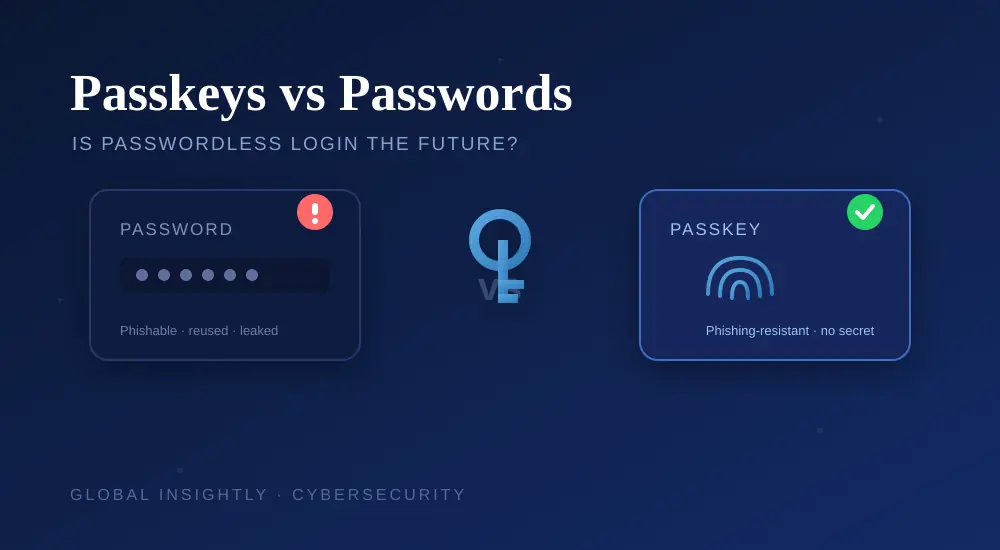
Even better, add a passkey where supported. Passkeys use your device’s screen lock (fingerprint, face or PIN) to sign in and are phishing-resistant — there’s no password for an attacker to steal or trick out of you. Just protect the device itself with a lock and understand how recovery works before you switch. For the full picture, our password security tips cover strong passwords and passkeys in depth.
3. Turn On 2-Step Verification
Two-Step Verification (2SV) is the single highest-value setting here. With it on, a stolen password alone isn’t enough — a login also needs a second factor. Where available, prefer stronger methods over SMS codes:
- Passkeys or security keys — the most phishing-resistant options.
- Google prompts or an authenticator app — stronger than text messages.
- SMS codes — better than nothing, but vulnerable to SIM-swap attacks.
Whichever you choose, save your backup codes somewhere safe so a lost phone doesn’t lock you out.
4. Review Your Signed-In Devices
In your Google Account settings, open the list of devices and recent activity. Sign out of any session you don’t recognise. Be careful: a device name alone can be ambiguous, so check the details — location, last activity and device type — before deciding. If anything looks wrong, sign it out and change your password immediately.
5. Update Your Recovery Information
Recovery details are a double-edged sword: they help you get back in, but an outdated or attacker-controlled recovery option can hand access to someone else. Keep your recovery email and phone number current and under your control. And never share verification or backup codes with anyone — Google will never call or message you asking for them.
6. Remove Unnecessary Third-Party Access
Over the years you’ve probably clicked “Sign in with Google” on dozens of apps, each granted some level of access. Review that list and remove anything you no longer use — especially apps that can read your Gmail or Drive. Every connected app is a potential side door, so keep the list short.
7. Learn to Spot Phishing
Most account takeovers don’t crack your password — they trick you into typing it. Never sign in through an unexpected link in an email or message. Instead, open your account settings directly by typing a known address into your browser. Attackers often impersonate Google and manufacture urgency (“suspicious login detected — verify now”). That urgency is the red flag. The same instincts apply to the AI-powered scams we cover in how to spot AI-generated phishing emails.
Bonus: Consider Advanced Protection
If you’re a high-risk user — a journalist, business owner, or anyone with sensitive data — Google’s Advanced Protection Program enforces the strongest safeguards, including mandatory security keys or passkeys and tighter limits on third-party access. It’s stricter to use, but hard for attackers to beat.
If You Think Your Account Was Hacked
Move quickly and in order:
- Use Google’s official account recovery or compromised-account guidance.
- Change your password right away if you can still sign in.
- Review recent activity and sign out of every unfamiliar session.
- Check Gmail forwarding rules and filters — attackers often add a hidden rule to secretly copy your mail.
- Re-check recovery options and connected apps for anything you didn’t set up.
It’s also worth confirming whether your email turned up in a known leak. Our guide on how to check if your email has been leaked in a data breach shows you how.
Final Thoughts
You don’t need to do everything at once. Run the Security Checkup, turn on 2-Step Verification (or a passkey), and clean up old device and app access — those three alone block the vast majority of attacks. Revisit the checklist every few months, and your Google Account goes from an easy target to a hard one.
Frequently Asked Questions
Is a strong password enough to protect my Google Account?
No. A strong, unique password is the foundation, but you should also enable 2-Step Verification (or a passkey) and keep your recovery options secure.
Should I share a verification code with “Google support”?
Never. Google will not contact you to ask for sign-in or recovery codes. Anyone who does is an attacker.
What is a passkey and is it safer than a password?
A passkey uses your device’s screen lock to sign in and is phishing-resistant, since there’s no password to steal. Where supported, it’s safer than a password alone.
Is SMS two-factor authentication safe?
It’s better than no second factor, but vulnerable to SIM-swap attacks. Prefer passkeys, security keys or an authenticator app where possible.
How often should I check my account security?
Run the Security Checkup every few months, and immediately if you notice unfamiliar activity or a login alert you didn’t trigger.
What’s the first thing to do if my account is hacked?
Use Google’s account recovery, change your password, sign out unfamiliar sessions, and check Gmail for hidden forwarding rules or filters an attacker may have added.
About Global Insightly
Global Insightly publishes practical guides on AI tools, cybersecurity, software and technology. Explore more at GlobalInsightly.com.
Official resource: Google Account Security.




Comments (0)